 how-to
7 Steps to Visualize 3D Home Plans Before You Build
Last Updated: October 25, 2026
Quick Summary
To visualize 3d home plans, capture accurate room measurements and wall heights first, then choose software that matches your skill level and control needs. Convert your 2D plan by setting scale from a known dimension, trace walls, doors and windows, and extrude them to ceiling height. Finish by furnishing, lighting, and taking a virtual walkthrough to check flow and sightlines.
- Measure each room's length, width, wall heights, and window positions before opening any software.
- Browser tools are fastest to start but offer the least control over wall thickness and materials.
- Set scale from a known wall dimension, since wrong scale makes every wall and door wrong.
- Trace doors and windows as separate objects so you can adjust them later.
- Use the dollhouse view first, then a life-sized walkthrough to check ceiling height and flow.
Table of Contents
- Why 3D Home Plans Beat Flat Blueprints
- Step 1: Capture Accurate Measurements and Scale
- Step 2: Choose the Right 3D Floor Plan Software
- Step 3: How to Convert a 2D Floor Plan to 3D
- Step 4: Build Walls, Doors, Windows, and Details
- Step 5: Furnish, Light, and Set Camera Views
- Step 6: Take a Virtual House Walkthrough
- Step 7: Study 3D House Plan Examples and Check the Design
- Frequently Asked Questions
Why 3D Home Plans Beat Flat Blueprints
Learning how to visualize 3D home plans changes how you make decisions before construction starts.
Flat blueprints leave too much to imagination. Most people cannot read a floor-plan image and picture ceiling height, window placement, or how a room feels. A 3D model removes that guesswork.
- Spatial understanding: you see how rooms connect and flow
- Scale accuracy: furniture and doorways appear at true size
- Faster decisions: changes happen on screen, not on site
The American Institute of Architects resources on design visualization explain why models help homeowners and builders agree on a shared vision. For a broader walkthrough of the design side, see our guide on how to visualize custom home designs.
Step 1: Capture Accurate Measurements and Scale
Every good 3D model starts with honest numbers. Measure each room's length and width, then record wall heights, door widths, and window positions.
A common mistake is rounding measurements. Small errors multiply once walls and furniture go in. Check each number twice, and note anything that looks odd, like a wall that is not square.
- Use a laser measure for long walls and a tape for short spans
- Record ceiling height in every room, not just one
- Note window sill heights and widths
If your source plan is old or imperfect, measure the real space again. Software cannot fix bad input.
Step 2: Choose the Right 3D Floor Plan Software
The right 3D floor plan software depends on your goal, your budget, and how much control you want. Most guides list tools without explaining the trade-offs. This section gives you a decision framework based on four factors that actually affect your results: skill level, control over details, privacy of your plan data, and output quality.
Browser tools: fastest start, least control
Browser-based design tools run in your web browser and require no installation. They are ideal for beginners testing layout ideas or homeowners who want a quick visual before committing to a professional model.
The trade-off is control. Browser tools often limit wall thickness, custom window shapes, and material libraries. They may also store your plan on their servers, which raises privacy questions if your layout is sensitive.
Desktop software: more detail, steeper learning curve
Desktop programs install on your computer and give you precise control over geometry, materials, and lighting. They are the right choice if you plan to build, need accurate dimensions, or want to hand off files to an architect or builder.
The cost is time. Desktop software typically requires training or practice, and the interface can feel overwhelming at first. If you are comfortable investing a few evenings to learn the tool, the payoff is a model that holds up to scrutiny.
AI plan conversion: fast drafts, mandatory review
AI conversion tools take a scanned or photographed 2D floor plan and generate a 3D model automatically. They are useful for getting a rough starting point from an old blueprint or a real estate listing image.
Accuracy is the main risk. AI tools often misread faint lines, skewed photos, or unusual angles. They may also guess at wall heights or door placements. Treat the output as a draft, not a final model.
How to decide: a simple framework
Ask yourself four questions:
- Skill level: Are you comfortable learning new software? If not, start with a browser tool.
- Control needed: Do you need exact wall thickness, custom windows, or material schedules? If yes, choose desktop software.
- Privacy: Is your floor plan sensitive? If so, prefer offline desktop tools over cloud-based browser or AI services.
- Output quality: Will you share the model with a builder or use it for permits? If yes, prioritize tools that export standard file formats and support detailed rendering.
A common pattern is to start with a browser tool for quick iteration, then move to desktop software once the layout is settled. AI conversion fits best when you already have a 2D plan and need a rough 3D view fast.
Pricing varies widely by tool and plan tier, so check each provider directly. Many offer free tiers or trials that are enough to test the workflow before you pay.
Each type of 3D floor plan software trades speed against control, so match the tool to your goal.
| Option | Best for | Key difference |
|---|---|---|
| Browser tools | Beginners testing layout ideas | Fastest start, least control |
| Desktop software | Builders needing accurate dimensions | More detail, steeper learning curve |
| AI plan conversion | Rough 3D view from an existing 2D plan | Fast drafts, mandatory review |
Step 3: How to Convert a 2D Floor Plan to 3D
Converting a 2D floor plan to 3D is simpler than it sounds, but the quality of the result depends almost entirely on how well you handle the source plan. Most guides assume you have a clean, to-scale drawing. In reality, many plans are scanned, photographed, or hand-sketched, and those imperfections carry straight into the 3D model. This section shows you how to set scale correctly and correct common problems so your model is dependable.
Step 1: Prepare the source plan
Start with the highest-resolution version of your 2D plan you can find. If you only have a paper copy, scan it at 300 DPI or higher, or photograph it straight-on with even lighting.
If the plan is a real estate listing image or a screenshot, check whether it includes dimensions. Plans without dimensions are still usable, but you will need to measure the real space to set scale.
Step 2: Set the scale using a known dimension
Scale is the single most important setting in any conversion. If scale is wrong, every wall, door, and piece of furniture will be wrong too.
Find a dimension you can trust, typically an overall wall length or a labeled room dimension.
If the plan has no labeled dimensions, measure one wall in the real space with a laser measure or tape.
Step 3: Trace walls, doors, and windows
Import the scaled image and trace over the walls, doors, and windows. Trace the inside face of exterior walls and the centerline of interior walls, depending on how your software handles wall thickness.
Pay attention to door and window symbols. A door shown as an arc indicates swing direction; a window shown as a thin rectangle indicates placement and width.
Step 4: Extrude walls to ceiling height
Tell the software to raise the traced walls to your measured ceiling height. If ceiling heights vary by room, set them per room rather than using a single default. Flat ceilings are common, but vaulted or dropped ceilings change how a space feels and should be modeled if they exist.
Step 5: Review and correct the model
Compare the 3D result against your measured numbers. Check overall room dimensions, wall positions, and door and window placements. Look for gaps where walls meet, overlapping walls, and doors that swing into walls or furniture.
AI conversion tools often misread faint lines, skewed photos, or unusual angles. They may also guess at wall heights or door placements. Always treat the output as a draft and correct it against your measurements before you trust it.
Handling common source-plan problems
- Skewed or angled photos: Use a photo editor to correct perspective before importing, or trace manually rather than relying on auto-conversion.
- Missing dimensions: Measure the real space and set scale from a known wall.
- Faint or broken lines: Increase contrast in an image editor, or trace manually over the visible portions and fill gaps using your measurements.
A reliable conversion is not about speed; it is about matching the model to reality. Once the shell is accurate, you can move on to details with confidence.
Step 4: Build Walls, Doors, Windows, and Details
Once the shell exists, add the parts that make a house feel real.
A common mistake is skipping door swing direction. A door that opens into a hallway blocks traffic. Check each swing in the model before you move on.
- Set interior and exterior wall thickness
- Place windows to match real sill heights
- Add door swings and check clearance
This is also the stage to test circulation. Walk the model mentally from the front door to each room. If a path feels tight, fix it now.
Step 5: Furnish, Light, and Set Camera Views
Furnishing and lighting turn a shell into a home you can judge.
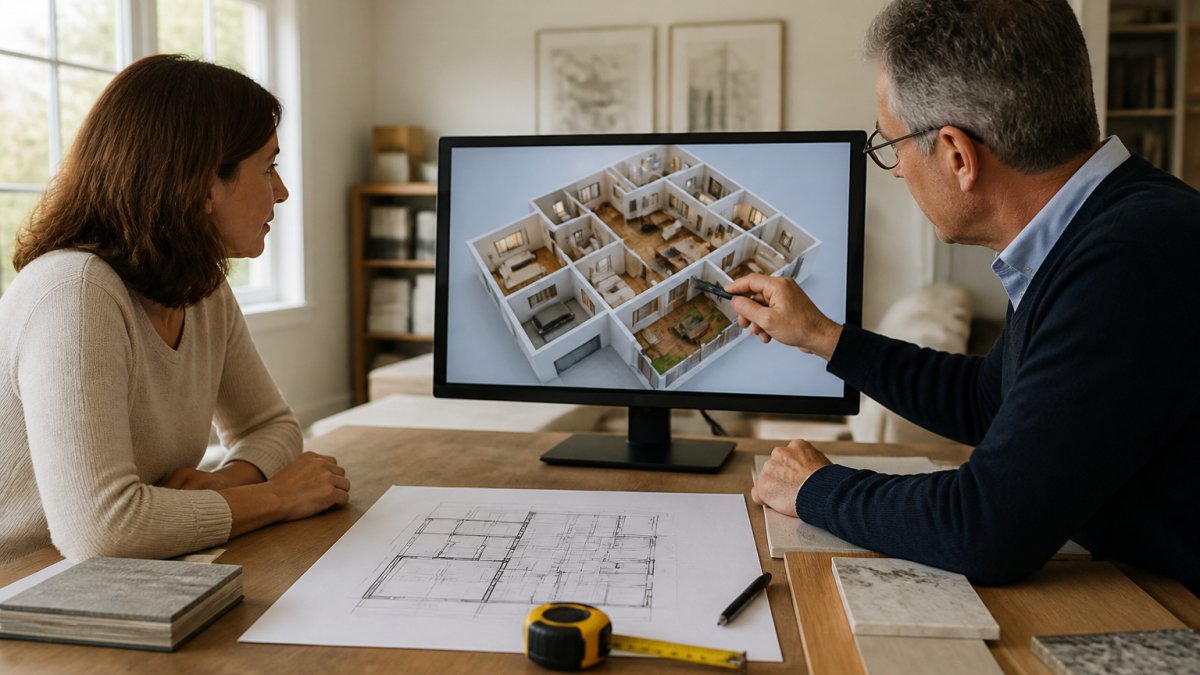
Start with the big pieces: beds, sofas, tables. Then check walkways. A sofa that leaves a narrow gap to the coffee table will feel cramped in real life.
Lighting changes everything. A room that looks bright at noon may feel dark in the evening. The Illuminating Engineering Society guidance on residential lighting offers useful benchmarks for light levels.
Step 6: Take a Virtual House Walkthrough
A virtual house walkthrough lets you move through the design as if you were there. Use the dollhouse view first to see the whole layout, then drop into a life-sized walkthrough to check how each room feels.
Watch for these during the walkthrough:
- Sightlines: what you see from the front door
- Ceiling height: does any room feel low?
- Flow: can you move easily between spaces?
Augmented reality and virtual reality views add another layer. AR lets you place the model in your real yard or room. VR puts you inside at full scale.
Step 7: Study 3D House Plan Examples and Check the Design
Real 3D house plan examples teach you what to look for. Browse selected residential projects to see how finished designs compare to your own model. Compare finished projects to your own model and note what works.
Then run a final check on your own plan:
- Every room has a clear path in and out
- Door swings do not block traffic
- Window heights match your measurements
If the model holds up, you are ready to move forward. Understanding our six-phase process shows how a design moves from concept to construction. When you are ready, Get in Touch.
Frequently Asked Questions
How do you turn a floor plan into a 3D model?
Start with accurate measurements of every room, then import or redraw the plan in 3D floor plan software. Trace the walls, set the ceiling height, and add doors and windows at their real positions. The tool extrudes the flat plan into a 3D model you can rotate, furnish, and view from any camera angle. Most browser tools handle this in under an hour for a single floor.
What is the easiest way to visualize a house plan in 3D?
The easiest path is a browser-based 3D planner: upload a floor-plan image, set the scale, and trace the walls. You get a dollhouse view and a walkthrough without installing anything. If you already have a 2D CAD file, an AI conversion feature can build the 3D model faster, though you should check wall thickness and door placement afterward, since automated conversion often misreads imperfect source plans.
Can a 3D model show how furniture will fit in a room?
Yes, and this is one of the most useful checks. Place life-sized furniture from the tool's library into the room and rotate it to test clearances. Check that doors swing without hitting a sofa, that walkways stay at least 36 inches wide, and that a bed leaves room for nightstands. A 3D home plan makes these fit problems visible before you buy anything.
What should I check when reviewing a 3D home design?
Look past the finishes. Confirm ceiling heights, window sizes, and wall positions match your measurements. Walk the virtual house walkthrough and check circulation: can you carry groceries from the garage to the kitchen without squeezing past a table? Review lighting at different times of day, and confirm the plan meets egress and stair requirements before you share it with a builder.
Getting a design right on screen saves time, money, and stress once building starts. At ArchitexOne, we guide homeowners through architect-led visualization from first sketch to final walkthrough. Our six-phase process keeps you in control, and our collaborative approach avoids the bureaucracy that slows projects down. Get started with ArchitexOne and see your home before it is built.